Only a few months after the community discovered a way to activate the “Native NVMe” feature of Windows Server to increase data writing speeds by up to 80% for SSDs under Windows 11, Microsoft has officially taken steps to block it.
Microsoft restricts SSD performance by 80% under Windows 11 with an update.
The controversy started when Microsoft announced that Windows Server 2025 would support the new NVMe native architecture, allowing server systems to achieve significantly higher IOPS (input/output operations per second).
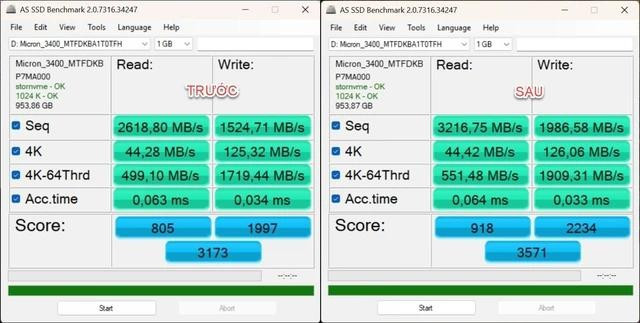
SSD speeds under Windows 11 soar after enabling native NVMe.
Microsoft explained that they removed the obsolete mechanism that treated NVMe SSDs as SCSI disks, originally designed for rotational hard drives.
Tech enthusiasts quickly found registry keys to activate this feature on Windows 11 versions 24H2 and 25H2. The results were extremely impressive, especially in terms of random write speeds.
According to widely shared AS SSD Benchmark test results, random write speeds (4K-64Thrd) dramatically increased after applying the tweak, pushing the SSD’s overall score to a new level.
The improvement in IOPS made the system more responsive, especially with computers featuring less powerful processors.
However, in the latest Insider versions of Windows 11, members of the My Digital Life forum found that existing registry commands had been completely disabled. Microsoft seems to have blocked this feature without warning, forcing users to revert to the standard NVMe SCSI driver, which is slower.
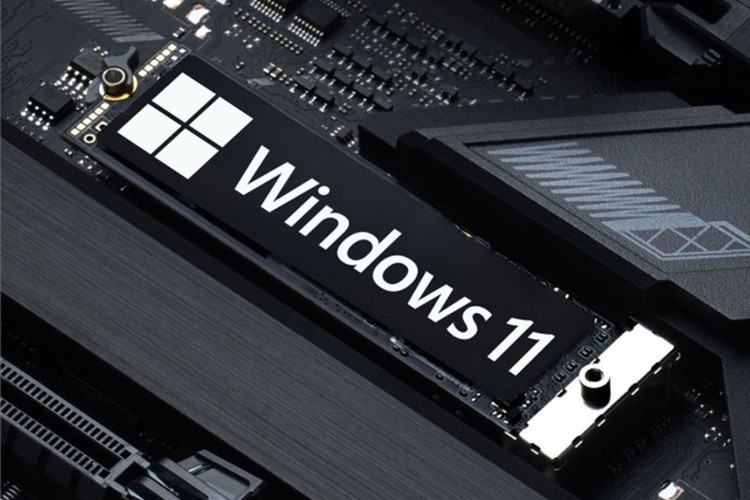
The trick to speed up SSDs on Windows Server 2025, which was copied to Windows 11, has been blocked.
While no official announcement has been made, experts assume that Microsoft is concerned about stability. A feature that has not been thoroughly tested (optimized only for server environments) could cause data errors, blue screens, or hardware conflicts on billions of devices.
Allowing the activation of such an experimental feature would be too risky for Microsoft on consumer versions of Windows.
Users are still finding ways to “bypass the rules”.
Although modifying the Registry is now impossible, the user community has found other ways to bypass the rules. Deskmodder indicates that it is still possible to activate the native NVMe feature using the dedicated tool ViVeTool, and provides precise instructions on this.
Download ViVeTool from GitHub and extract it. Right-click on the Start menu > select Terminal (admin) under Command Prompt (shortcut: Ctrl + Shift + F2). Then go to the folder containing ViVeTool; for example, if the ViVe folder is on the C drive, enter `cd C:ViVe` and press Enter. Finally, enter the command `vivetool /enable /id:60786016,48433719` and press Enter to restart.
Of course, using tools as intrusive as ViVeTool always carries risks. However, for those who want to optimize the performance of their high-end SSD, it’s the price to pay for Windows 11 to stop limiting their computer’s speed.
Source: https://khoahocdoisong.vn/microsoft-chan-thu-thuat-tang-toc-ssd-บน-windows-11-post2149094244.html