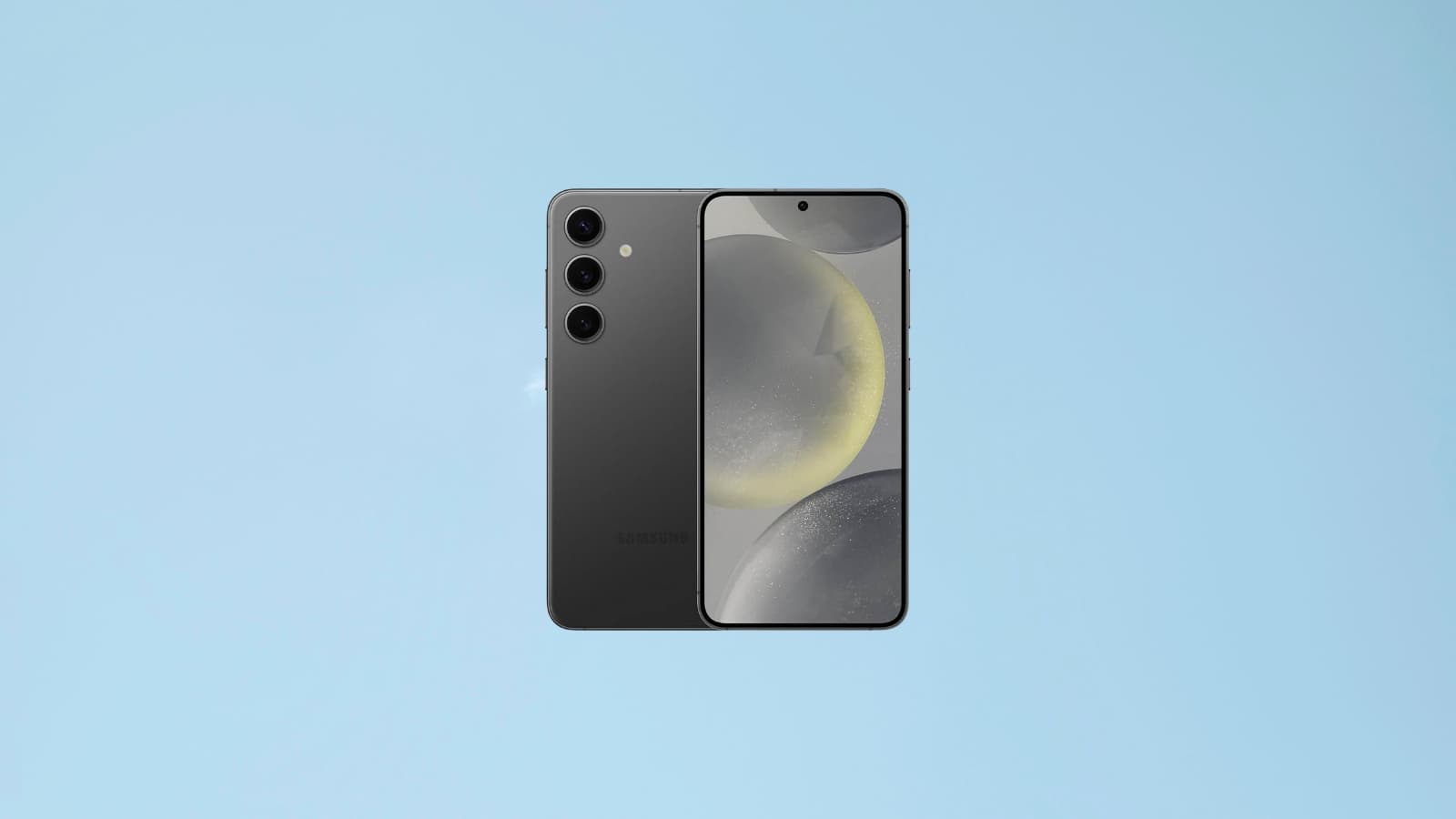
For several days, Samsung’s Galaxy S26s have supported Apple’s Airdrop function, allowing you to quickly and easily transfer files between one of the new smartphones in the range and a device from the American group. BFM Tech explains how it works.
Exclusive to Apple since its introduction in 2011, Airdrop is now more open, and not necessarily thanks to Apple. Allowing wireless sharing of photos, documents and other files between nearby iPhones, iPads and Macbooks, this function has been compatible with the Pixel 10 for several months. It is now also with the Galaxy S26, from Samsung.
The South Korean manufacturer announced the deployment of this major new feature last week. It is now accessible. BFM Tech therefore explains to you how to use it to exchange content between a Galaxy S26 and an Apple device as easily as with two devices from the American group.
Mise à jour
- To get started, go to the settings of your Samsung smartphone, then to “Software Update”. If an update is offered to you, install it. It will allow your Galaxy S26 to download and install the latest update, and therefore a priori, the one which activates Airdrop support.
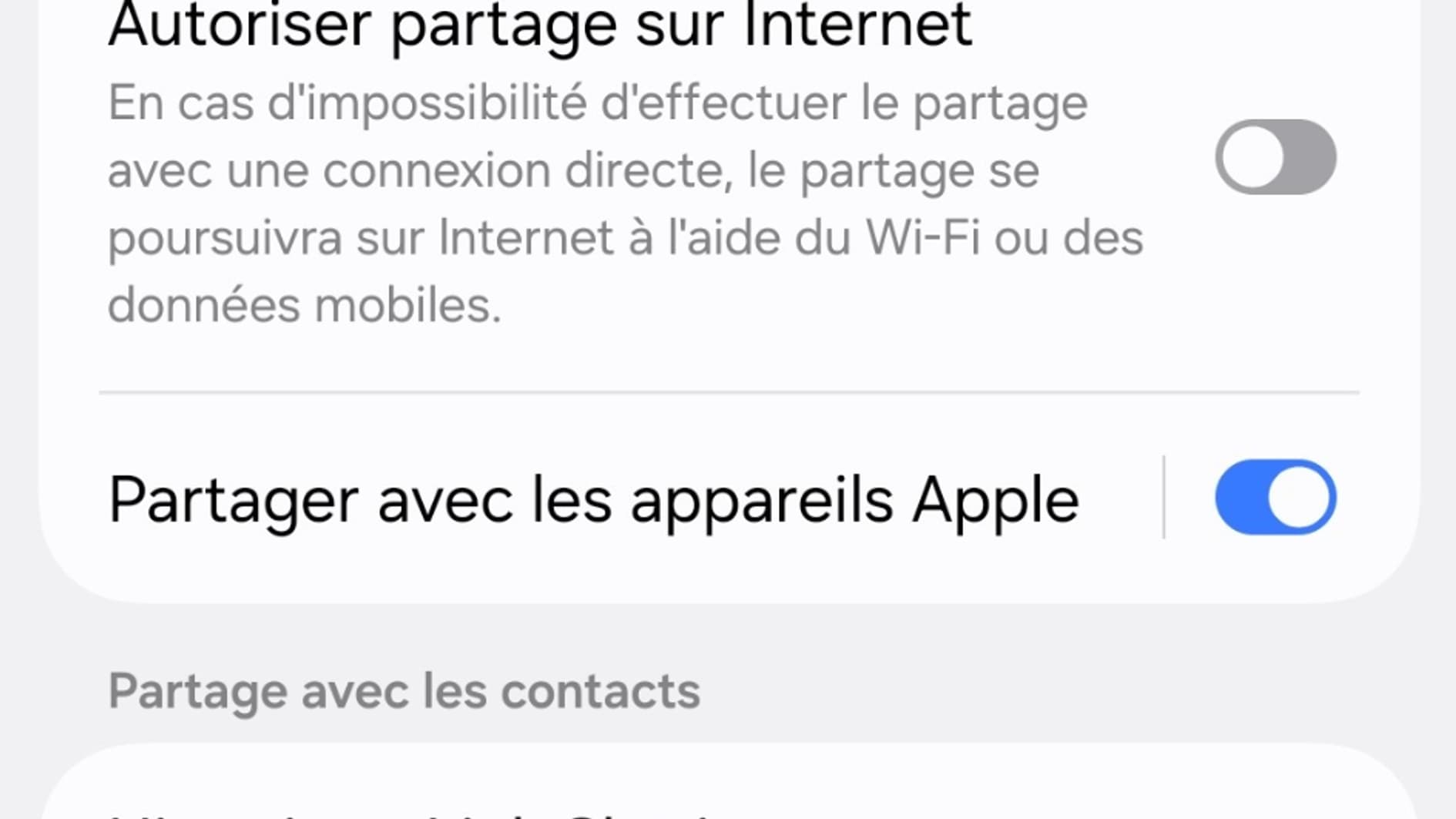
- After applying the update, go back to settings and tap “Connected devices” then “Quick Share”. It is in fact via this wireless data transfer service for Android that the Galaxy S26s are compatible with Airdrop.
- At the bottom of the “Nearby Sharing” section, you should see a new option called “Share with Apple Devices”, which is enabled by default.
- If so, then you will be able to quickly and easily exchange files between your Galaxy S26 and your Apple device.
Du Galaxy S26 Ã Apple
- First thing to do to transfer content from your Galaxy S26 to your Apple device: set Airdrop to “Everyone for 10 minutes” on the Apple product side. As a reminder, the function is indeed set by default to “Contacts only”.
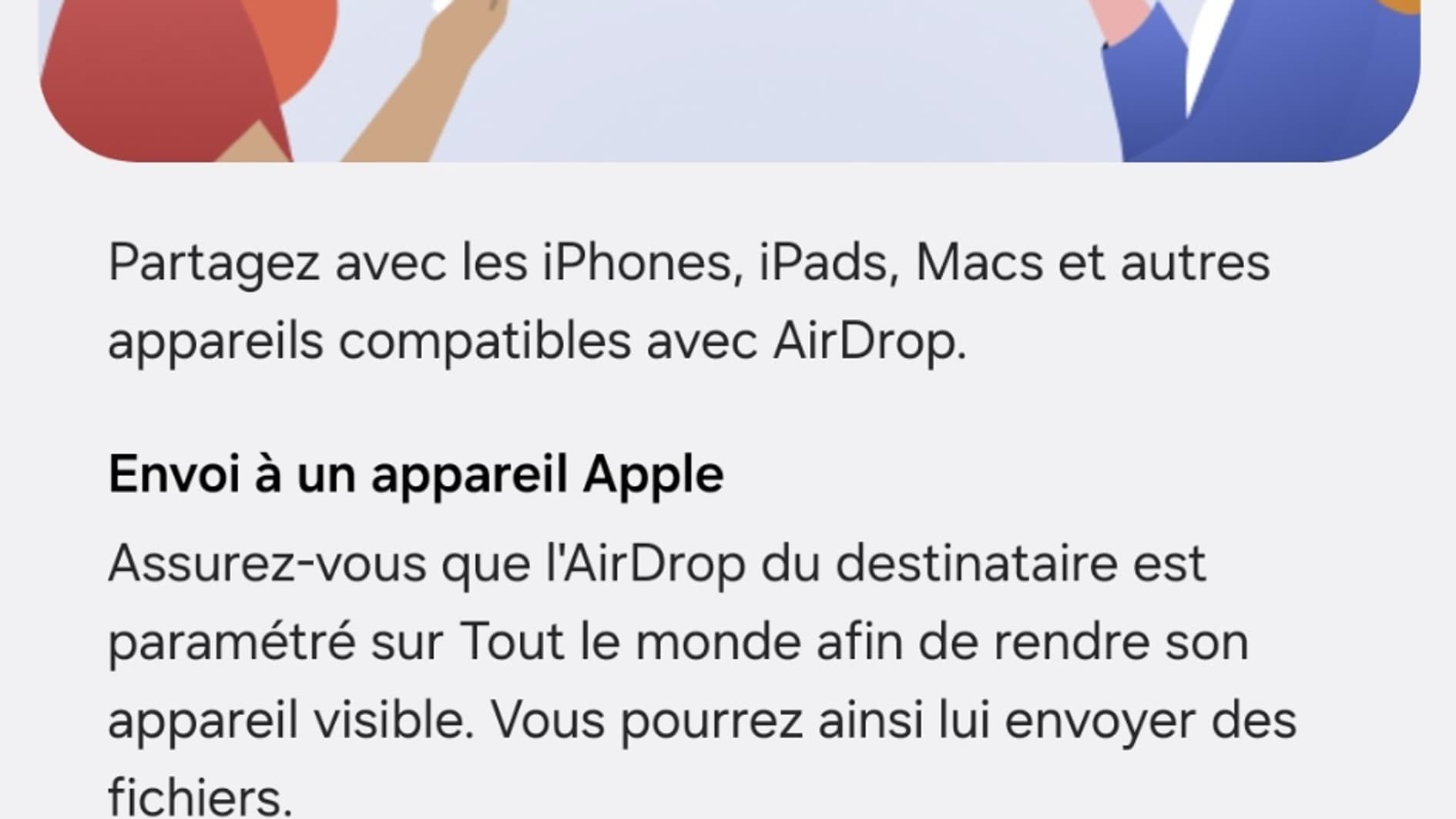
- To send content from your Galaxy S26, simply select “Share”, then press “Quick Share”.
- Your Apple device should then quickly appear in the “Share with nearby devices” section.
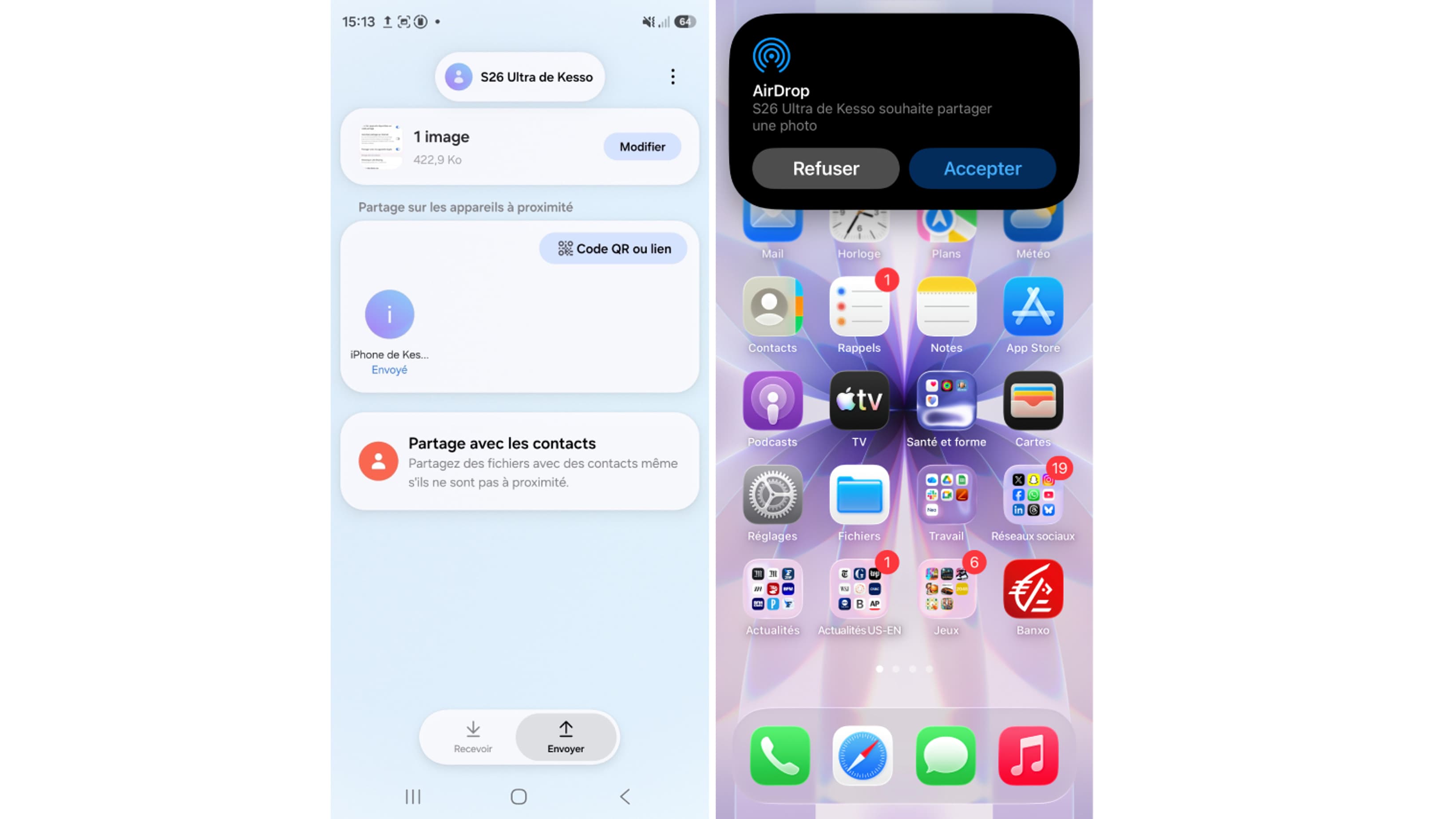
- Once you select iPhone, a notification will appear on your Apple device, asking you to accept or decline the sharing.
- After accepting, the shared file will automatically open when the transfer is complete.
D’Apple au Galaxy S26
- As with your Apple device, you will first need to set Quick Share to “Everyone (10 minutes only)” so that your Galaxy S26 can receive files.
- After selecting “Share” for the content you want to transfer, tap “Airdrop.”

- Your Galaxy S26 will appear in the “Other devices” category.
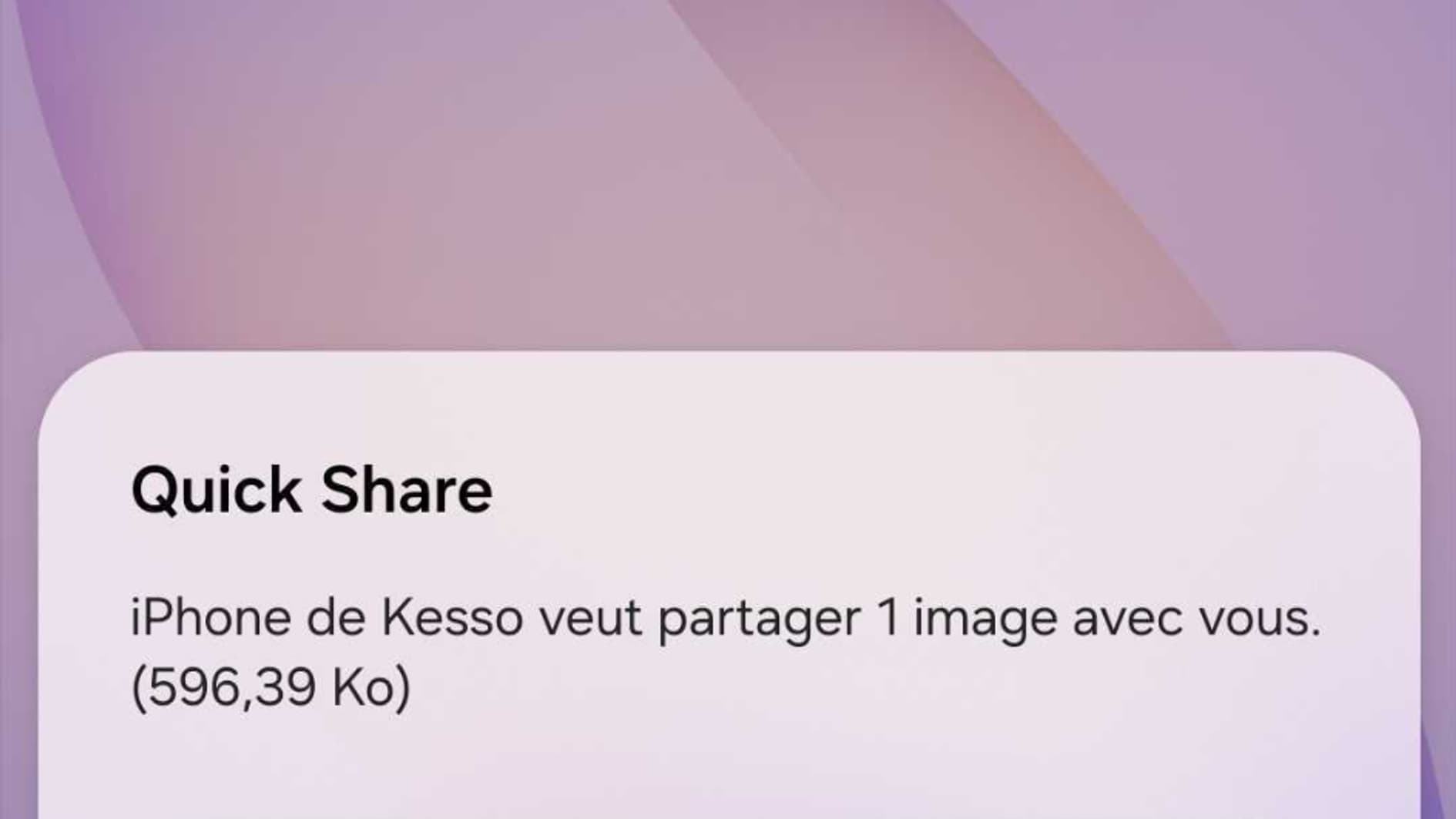
- Simply select it and a notification will appear on your Samsung smartphone, inviting you to accept or refuse sharing.
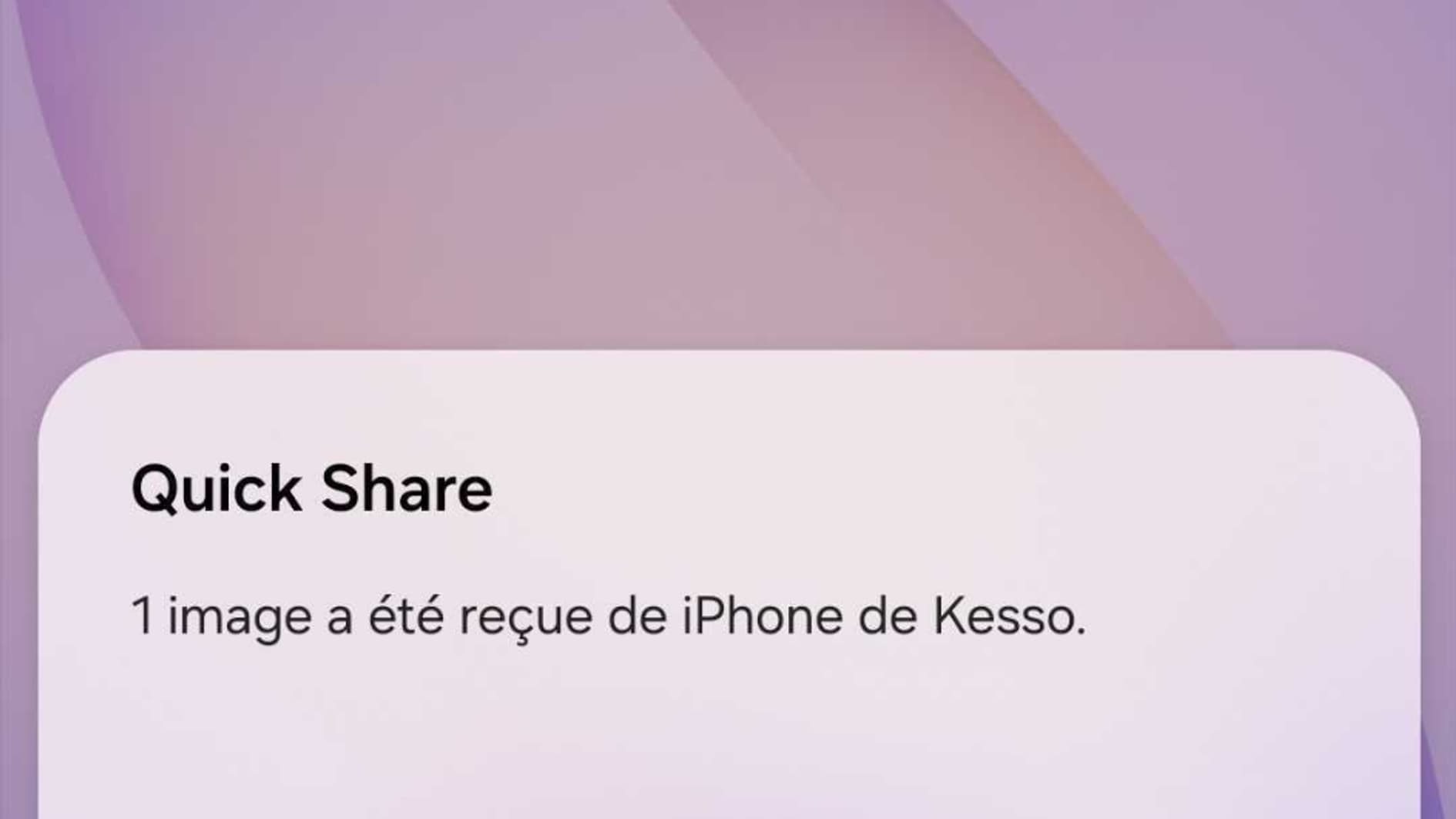
- Once the transfer is accepted, you will be informed that you have received the file in question, which you can then open.
There you have it, the simplicity of Airdrop is now within the reach of a few more users, let’s hope that Samsung will extend it to other of its smartphones.